
Smart Blinds™ for Apple HomeKit
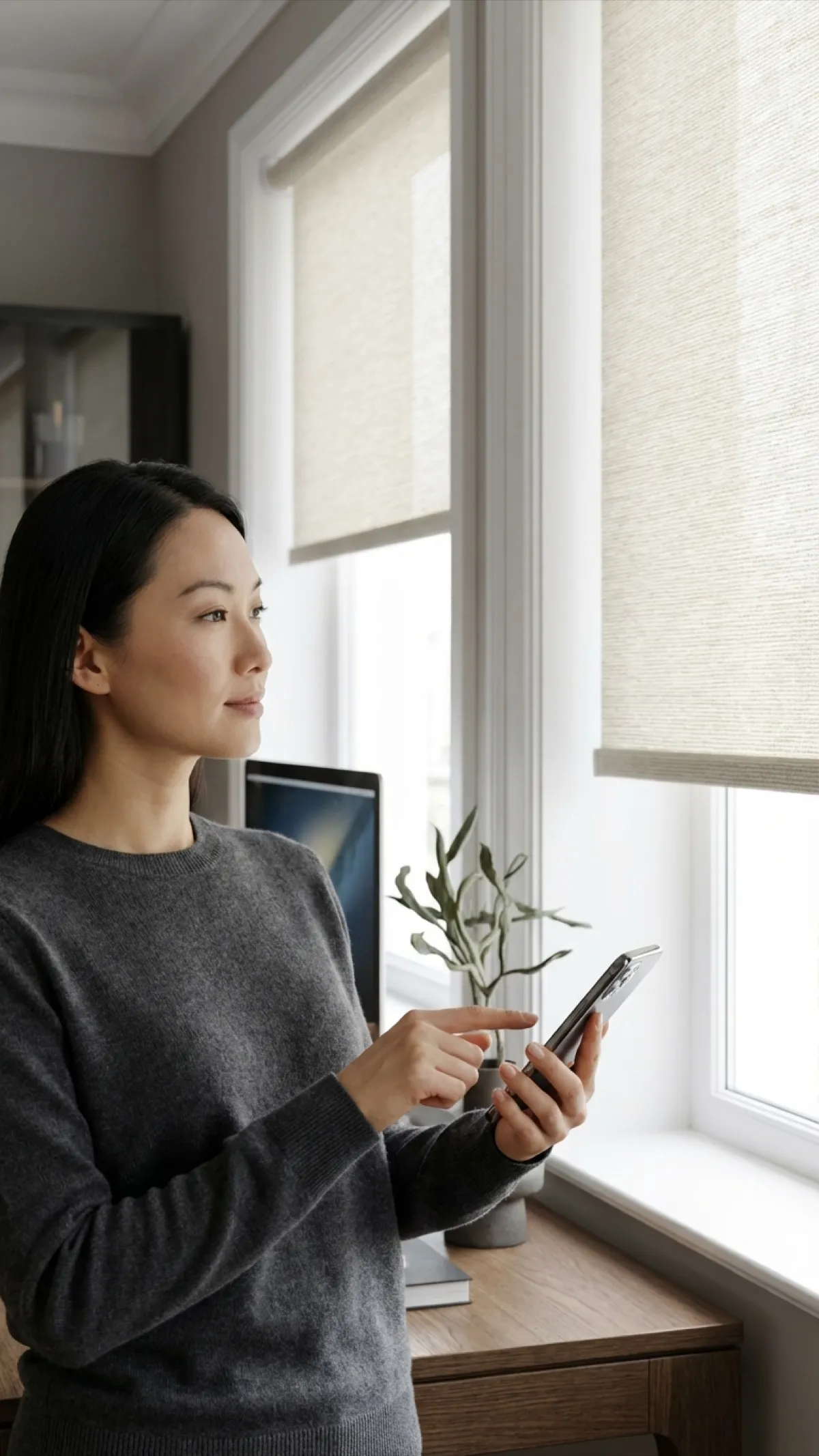
"Hey Siri, open the blinds." Apple HomeKit control with Siri voice commands and Apple Home scenes, through the smart-home option.
Read moreExplore more Motorized







Choose with a little more clarity
Not sure which shade to choose?
Compare a live-priced shortlist by room, light and operation. No login or email needed.
Siri Voice Commands for Your Blinds
Use Siri on any Apple device to control your blinds. iPhone, iPad, Mac, Apple Watch, HomePod -- they all work.
Set Up in 5 Simple Steps
HomeKit setup is designed to be effortless. Scan a code, assign a room, and you are done.
Install the Blinds
Mount your motorized smart blinds using the included hardware. Charge the battery or connect the hardwired power adapter.
Set Up the Bridge
Plug in the Wi-Fi bridge from the smart-home option and add your shades in its app.
Add to Apple Home
Follow the bridge app's steps to add it to the Apple Home app; your shades appear in Home.
Assign to a Room
Choose which room the blinds belong to. This enables room-based Siri commands and grouped control in the Home app.
Create Scenes & Automations
Build HomeKit scenes (e.g., "Good Morning") and set up automations based on time of day, sunrise/sunset, or your location.
HomeKit-Compatible Products
Motorized shades that work with Apple HomeKit and Siri through the smart-home option.
Motorized Roller Shades
Clean lines and smooth operation. Add the smart-home option for HomeKit and Siri control.
Motorized Blackout Cellular Shades
Insulating honeycomb shades for bedrooms, with motorized lift.
Motorized Solar Shades
Cut glare and heat on sun-facing windows, on a schedule with HomeKit automations.
HomeKit Scenes & Automations
Combine your blinds with other HomeKit accessories for powerful, automated scenes.
Good Morning
Trigger: Sunrise or 7:00 AM
- 1. Blinds open gradually to 75%
- 2. Lights warm to 80%
- 3. Thermostat sets to 72°F
- 4. HomePod plays morning briefing
Movie Night
Trigger: "Hey Siri, movie time"
- 1. All blinds close fully
- 2. Lights dim to 5%
- 3. Apple TV turns on
- 4. HomePod set to theater mode
I'm Leaving
Trigger: Location (leave home)
- 1. All blinds close
- 2. Lights turn off
- 3. Door locks engage
- 4. Thermostat sets to away mode
Control from Every Apple Device
Ask Siri, tap the Home app, or use Control Center. Your blinds work everywhere Apple does.
Why Choose HomeKit Smart Blinds™?
Siri Voice Control
Ask Siri to open, close, or adjust your blinds from any Apple device. Works on iPhone, iPad, Mac, Apple Watch, and HomePod.
Remote Always Works
Every motorized shade keeps its included remote, so the shades still work even if your Wi-Fi is down.
Adaptive Automation
Create automations based on sunrise, sunset, time of day, or when you leave and arrive home using location triggers.
Apple Home App
See all your blinds in the Home app with real-time status. Control from iPhone, iPad, Mac, or Apple Watch.
5-Year Motor Warranty
Motors and electronics are covered for 5 years.
HomeKit Scenes
Build scenes like "Good Morning" or "Movie Night" that control blinds, lights, and thermostat with a single tap or command.
Designed for the Apple Ecosystem
Perfect For Every Room
Bedrooms
Add blinds to your HomeKit "Good Night" scene. Siri closes the blinds, dims lights, and sets the alarm all at once.
Living Rooms
Create a "Movie" scene on your Apple TV that closes blinds and dims lights. One tap on the Siri Remote does it all.
Sunrooms
Set blinds to adjust automatically based on sun position. HomeKit automations track sunrise and sunset for your location.
Apple HomeKit Smart Blinds™ FAQ
Everything you need to know about HomeKit smart blinds
How do I add smart blinds to Apple HomeKit?
Choose the smart-home option when you order. It includes a small Wi-Fi bridge: set it up in its app, then add it to the Apple Home app following the app's steps. Your shades then appear in Home, ready to assign to rooms.
Do I need an Apple Home Hub?
Your shades connect through the Wi-Fi bridge that comes with the smart-home option. For automations and control away from home, Apple recommends an Apple Home hub (an Apple TV or HomePod).
What Siri commands work with smart blinds?
You can say 'Hey Siri, open the bedroom blinds,' 'Hey Siri, close all the blinds,' or 'Hey Siri, set the living room blinds to 50%.'
Can I create HomeKit scenes with smart blinds?
Yes. In the Apple Home app, create a scene like 'Good Morning' and add your blinds along with lights, thermostat, and other accessories. You can activate scenes by saying 'Hey Siri, good morning,' tapping in the Home app, using Control Center on your iPhone, or setting up time and location-based automations.
Get Exclusive Offers & Inspiration
Sign up for our email list for exclusive deals and design inspiration.