
Smart Blinds™ for Google Home
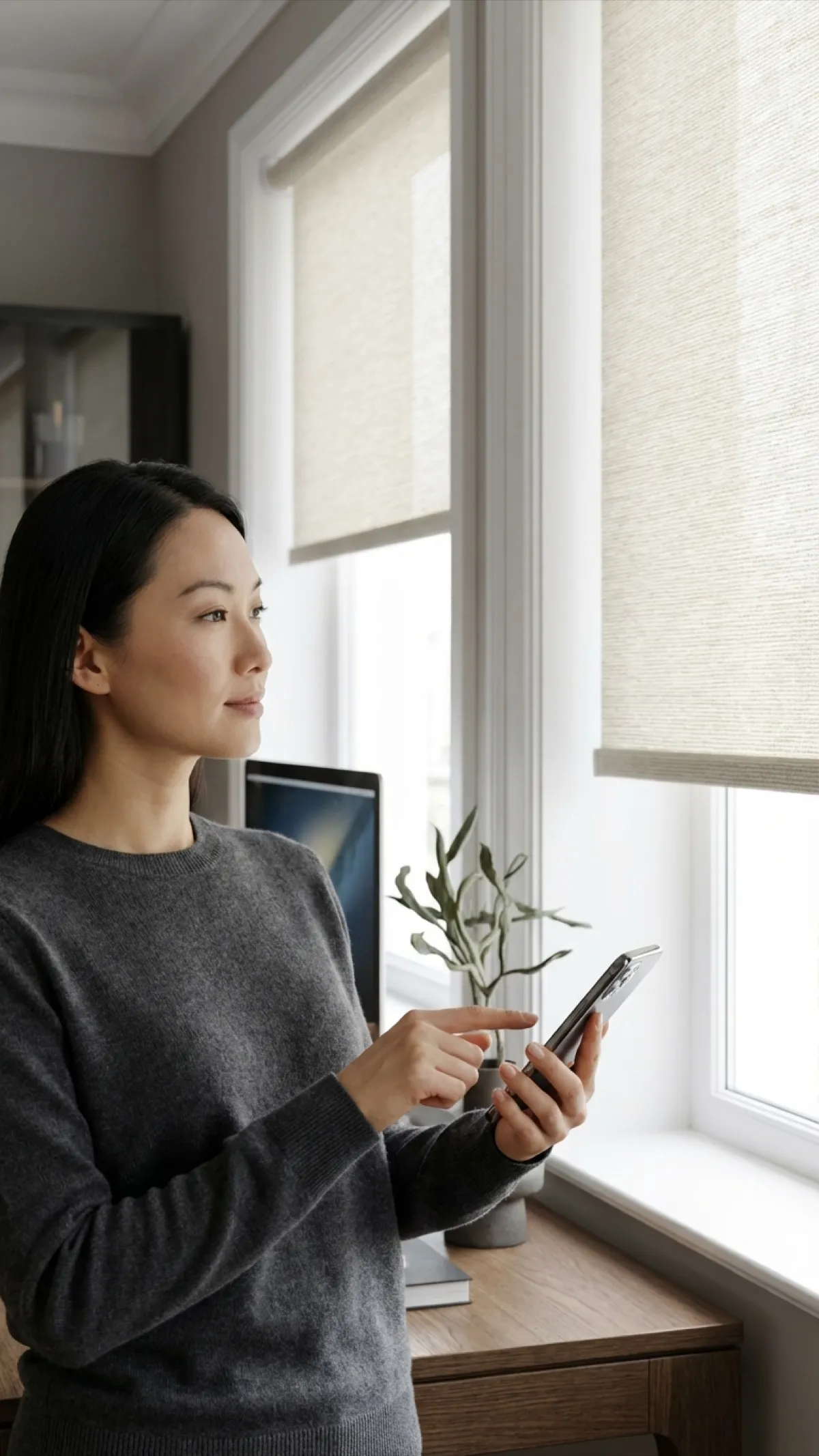
"Hey Google, open the blinds." Seamless integration with Google Assistant, Nest Hub, and your entire Google smart home ecosystem.
Read moreExplore more Motorized





Choose with a little more clarity
Not sure which shade to choose?
Compare a live-priced shortlist by room, light and operation. No login or email needed.
Google Assistant Voice Commands
Speak naturally to Google Assistant. Control individual blinds, entire rooms, or your whole home.
Set Up in 5 Easy Steps
Connect your blinds to Google Home in minutes. No technical skills or extra equipment needed.
Mount & Power Your Blinds
Install your motorized smart blinds and charge the battery pack or connect hardwired power.
Connect via SmartBlinds App
Plug in the Wi-Fi bridge that comes with the smart-home option and follow its app to add your shades to your home Wi-Fi.
Link to Google Home
In the Google Home app, tap '+', choose 'Set up device' then 'Works with Google', and link the bridge's app.
Assign to Rooms
Google Home will discover your blinds. Assign each one to the correct room (bedroom, living room, etc.) for grouped control.
Create Routines
Set up Google routines to automate your blinds. Add them to your morning, evening, or custom routines alongside other smart devices.
Google Home Compatible Products
Every motorized blind we sell integrates natively with Google Home and Google Assistant.
Motorized Roller Shades
Sleek, minimal design with smooth motorized lift. Available in light filtering and blackout fabrics.
Motorized Solar Shades
Block UV rays and reduce glare while maintaining your outdoor view. Ideal for sun-facing windows.
Motorized Blackout Cellular Shades
Insulating honeycomb shades with motorized lift. Add the smart-home option for Google Home control.
Google Home Routines with Smart Blinds™
Automate your blinds alongside lights, thermostats, and speakers for a fully coordinated smart home.
Sunrise Routine
Trigger: Sunrise
- 1. Blinds open to 50%
- 2. Thermostat adjusts to 72°F
- 3. Morning playlist starts
- 4. Daily briefing plays
Focus Time
Trigger: "Hey Google, focus time"
- 1. Office blinds set to 40%
- 2. Do Not Disturb enabled
- 3. Focus music plays
- 4. Lights set to cool white
Leaving Home
Trigger: "Hey Google, I'm leaving"
- 1. All blinds close
- 2. Lights turn off
- 3. Thermostat sets to eco mode
- 4. Security cameras activate
Control from Your Nest Hub
See all your blinds on the Nest Hub touchscreen. Tap to open or close, drag the slider to set the exact position, and view real-time status at a glance.
Why Choose Google Home Smart Blinds™?
Google Assistant Voice Control
Use natural language to open, close, or adjust your blinds. Google Assistant understands context and room names.
Nest Hub Dashboard
See and control all your blinds from the Nest Hub touchscreen. Drag sliders to set the exact position.
Google Routines
Add blinds to your morning, evening, or custom Google routines. Automate your entire day.
Google Home App
Control blinds from the Google Home app on iOS or Android. Manage from anywhere with internet access.
Simple Wi-Fi Bridge
The smart-home option includes a small Wi-Fi bridge that connects your shades to Google Home.
Room & Home Control
Assign blinds to rooms in Google Home. Control one blind, one room, or every blind at once.
Engineered for Google Smart Homes
Perfect For Every Room
Bedrooms
Add blinds to your Google bedtime routine. Close blackout blinds, set the alarm, and dim lights with one command.
Living Rooms
Use Nest Hub to control blinds with a tap. Set scenes like "Relax" or "Bright" that adjust blinds and lights together.
Kitchen
Ask Google to adjust blinds while your hands are busy cooking. Voice control is perfect for the kitchen.
Google Home Smart Blinds™ FAQ
Everything you need to know about Google Home smart blinds
How do I connect smart blinds to Google Home?
Set up the Wi-Fi bridge that comes with the smart-home option in its app. Then in the Google Home app, tap '+', choose 'Set up device' and 'Works with Google', and link the bridge's app. Your shades appear in Google Home, ready to assign to rooms.
What Google devices work with smart blinds?
Our blinds work with all Google Assistant-enabled devices: Google Nest Hub, Nest Hub Max, Nest Mini, Nest Audio, Google Home, Google Home Mini, Google Home Max, Pixel phones, and any Android or iOS device with Google Assistant. Even Chromecasts with Google TV support voice control.
What voice commands can I use with Google Assistant?
You can say commands like 'Hey Google, open the bedroom blinds,' 'Hey Google, close all the blinds,' 'Hey Google, set the office blinds to 40%,' or 'Hey Google, lower the kitchen shades.' Google Assistant supports open, close, percentage positioning, and room-based commands.
Can I add blinds to Google Home routines?
Yes. In the Google Home app, go to Automations and create a new routine. Add your blinds as an action and set them to open, close, or move to a specific percentage. You can combine blinds with lights, thermostats, music, and more. Routines can be triggered by voice, time of day, or sunrise/sunset.
Do I need a Nest Hub to control smart blinds?
No, a Nest Hub is not required. Any Google Assistant device will work for voice control, and the Google Home app on your phone provides full control. However, a Nest Hub adds a nice touchscreen interface where you can see all your blinds and adjust them with swipe and slider controls.
Can I control blinds from outside my home?
Yes. The Google Home app gives you remote control from anywhere with an internet connection. You can open or close blinds from work, check their status, or trigger routines. This is great for security purposes or for letting in natural light for your pets while you are away.
Get Exclusive Offers & Inspiration
Sign up for our email list for exclusive deals and design inspiration.